PNG vs JPG: Which Format Should You Merge Your Images In?
A plain-language comparison of PNG and JPG for merging: transparency, file size, screenshots versus photos, and which output format to pick at download time.
 MergePNG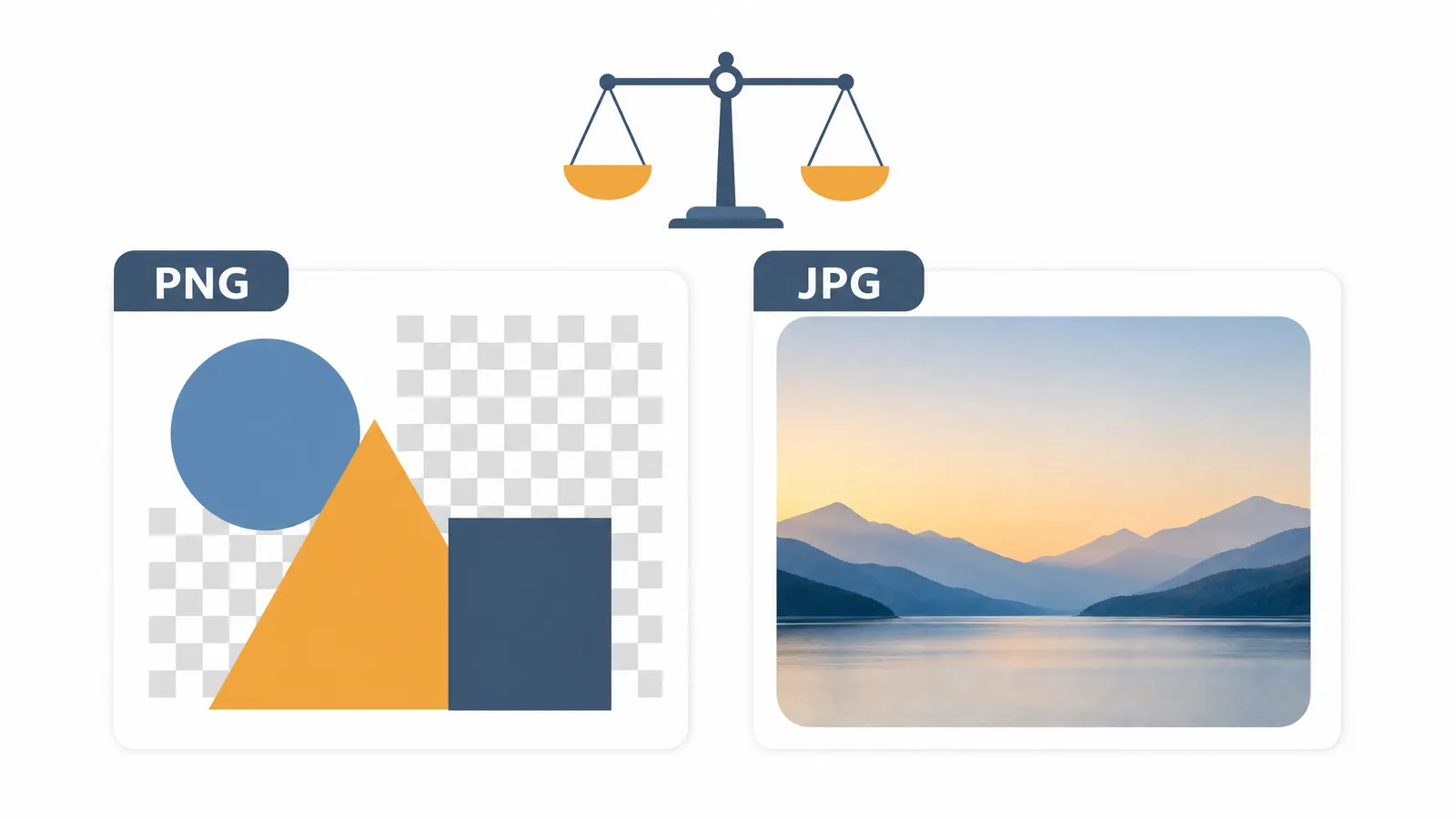
Use PNG when your images have transparency or sharp edges, and JPG when they are photographs and file size matters. That single rule covers most merge jobs. The rest of this article explains where it comes from, where it breaks, and why the output format of a merge deserves more thought than the input formats ever did.
Both formats end up in the same tool here: the merger accepts PNG, JPG and WebP together, and you choose the output once, at download time.
What each format actually stores
PNG stores pixels exactly, using lossless compression, plus an alpha channel for transparency. Nothing is approximated: encode and decode a PNG a hundred times and the pixels never drift. That precision costs space, which is why a screenshot saved as PNG can be several times heavier than the same image as JPG.
JPG stores an approximation. It transforms the image into frequency coefficients and throws away the ones human eyes notice least, controlled by a quality number. At quality 90 the result looks like the original to most viewers; at 60 you can see halos around sharp edges. JPG has no alpha channel, so a transparent area becomes a solid color, usually white. Each re-save loses a little more, which is why repeatedly editing a JPG compounds the damage.
WebP deserves a mention because it takes both jobs: it does lossy and lossless, keeps transparency, and comes out smaller than JPG at similar visual quality. Browser support is no longer a concern; every current browser displays it.
The one question that decides it
Ask what the merged result is for.
Screenshots, diagrams, UI captures, anything with text or flat color: PNG. Lossy compression smears text and hard edges first, and the artifacts never wash out. If the PNG result is too heavy for where it is going, compress it afterwards with the compress tool, which can move it to WebP while keeping transparency.
Photographs: JPG or WebP. Photos have noisy, continuous detail that lossy compression handles gracefully, and the size savings are large, often five to ten times smaller than the PNG of the same photo. WebP at quality 75 usually beats JPG at the same visual quality.
Anything with a transparent background: PNG or WebP, never JPG. This is not a quality judgment; the format simply cannot carry the information.
Transparency changes the math
Transparency is the one property that cannot be recovered after it is lost. Convert a logo with a transparent background to JPG and every empty pixel becomes white; converting that JPG back to PNG does not restore the alpha channel, because it is gone.
This matters at merge time because layouts mix content. Stack a transparent logo over a screenshot and the merged PNG keeps the see-through pixels; export the same merge as JPG and the logo gets a white box around it. The tool on this site defaults to a transparent background and warns about this in spirit: the FAQ on the home page lists the format behavior explicitly.
Why the output format matters more than the inputs
A merge re-encodes everything once. Whatever format your files arrived in, the pixels end up re-encoded in the output format you pick, at that format's settings. Mixing inputs is therefore free: a PNG screenshot and a JPG photo in one stack is not a conflict, it is just pixels on a canvas.
The output choice sets the ceiling on quality for the whole result:
- PNG output: lossless, transparent-capable, heaviest.
- JPG output: quality 92 by default, no transparency, much lighter.
- WebP output: transparency kept, usually the smallest of the three at equal visual quality.
- PDF output: images embedded losslessly, pages instead of a single canvas, via the PNG to PDF tool.
A reasonable workflow for a mixed batch is to merge to PNG, look at the file size, and then decide. If it is going into an email or a chat, run it through compression first. If it is going to a printer or a filing system, make it a PDF.
A worked example
Suppose you have three app screenshots (PNG, with transparency around rounded corners) and two photos (JPG) from the same trip report, and you want one image.
Stack them in the merger. Leave the background on Transparent, use the same-width option, and export as PNG: the screenshots keep their rounded corners and the photos stay sharp. The result might be 6 MB.
If that is too heavy, two options follow. Export the same merge as WebP, which keeps the transparency at maybe a third of the size. Or export as PNG and compress afterwards, where Auto mode compares optimized PNG against WebP and keeps whichever is smaller while respecting the alpha channel. Both routes preserve what matters; only the packaging changes.
What about quality loss from merging itself?
With PNG output there is none. The canvas holds exact pixels and PNG writes them out exactly. With JPG or WebP output, the merge adds one generation of lossy encoding, which at quality 90-plus is not visible in practice. The habit worth avoiding is repeated cycles: merging, then re-merging the result, then converting again. Each lossy cycle compounds. Plan the pipeline once, resize or split when needed, and produce the final file in one pass.
FAQ
Is PNG always higher quality than JPG?
PNG is always lossless, but "higher quality" only shows when the content has sharp edges, text or flat color. For photos, a quality-90 JPG is visually indistinguishable from the PNG at a fraction of the size, so the lossless advantage buys little.
Can I merge JPG files into a PNG?
Yes. Input and output formats are independent choices in the merger. JPG inputs on a canvas exported as PNG come out lossless from that point on.
Which format keeps transparency?
PNG and WebP. JPG cannot store an alpha channel, so any transparent area becomes a solid background color on export.
Which is smaller, PNG or JPG?
For photos, JPG by a wide margin. For screenshots and flat-color graphics, PNG can actually be smaller than JPG, because lossy compression performs poorly on hard edges and adds artifacts trying to preserve them.
Should I just use WebP for everything?
Almost. The remaining reasons to prefer PNG are tooling (some older editors and CMS pipelines mishandle WebP) and pixel-exact archival. The remaining reason to prefer JPG is universal compatibility in old software. Otherwise, WebP is a strict improvement for web use.