PNG Merge: How to Combine PNG Files Into One Image
A practical png merge walkthrough: combine PNG files into one image on Windows, Mac, or phone — layouts, transparency, and no uploads.
 MergePNG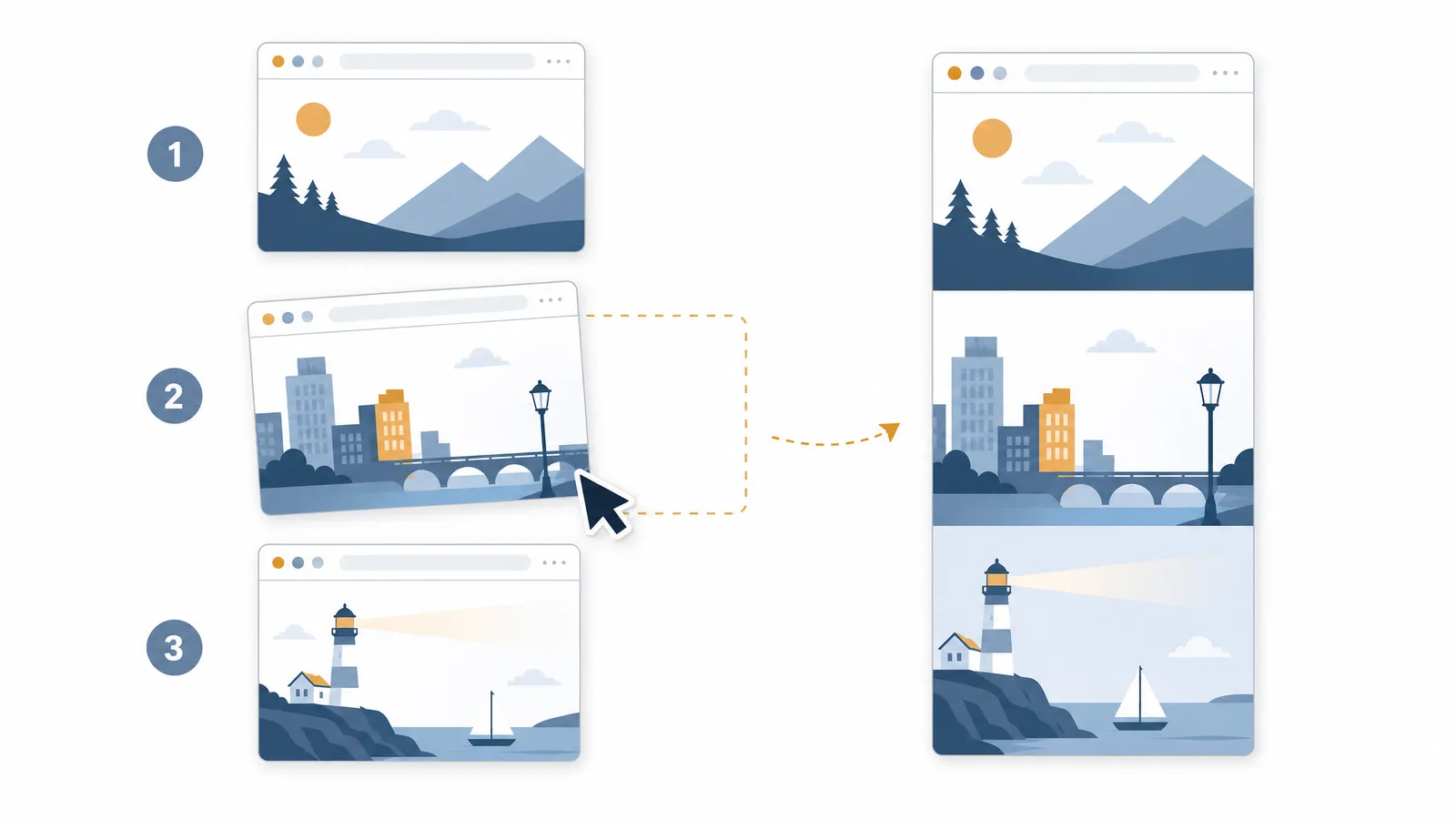
A png merge has a standard shape: stack or tile several images onto one canvas and save it as a single PNG. You can do it in a desktop editor, but the fastest route for most jobs is a browser tool: add the files, put them in order, pick a layout, download. This guide walks through the whole thing, including the two details that trip people up, transparency and sideways images.
If you want to skip straight to doing it, the PNG merger on this site runs the entire job locally, so your screenshots never leave your machine. Combining PNG files instead of merging them into a PDF? The PNG combiner page sets up the same workbench for exactly that job.
PNG merge or PDF: which output you need
A merged image and a PDF solve different problems. Reach for a single PNG or JPG when the result will be viewed on a screen: a stack of screenshots for a bug report, a strip of product photos, a contact sheet of thumbnails, a sprite sheet for a game or website. Reach for a PDF when the result will be printed, filed, or attached to paperwork where page structure matters. If you are unsure, the PNG to PDF tool takes the same files and produces one page per image.
One merged image also compresses better than a PDF wrapping the same pixels, and it displays inline in chat apps and markdown documents without a viewer.
How to combine PNG files into one, step by step
Here is the whole process in the browser tool, which takes under a minute for a dozen files.
- Add your files. Drag the PNGs onto the upload box, or click it to browse. JPG and WebP files can join the same job; the output format is a separate choice, so mixed inputs are not a problem.
- Put them in order. Drag the thumbnails until the sequence reads the way you want. If a screenshot came in rotated, tap the rotate button on its thumbnail once or twice. Exact duplicate files get flagged automatically, which is handy when a folder has been copied back and forth.
- Choose the layout. Stack puts the images top to bottom, which suits screenshots of equal width. Side by side lines them up left to right, which suits photos in landscape. Grid arranges them into rows and columns, and you set the column count yourself.
- Check the numbers. The preview shows the exact output size in pixels. If you are merging four 2560-pixel-wide screenshots into a stack, expect a 2560 × combined-height result, which is large but correct.
- Download. Pick PNG, JPG, WebP or PDF, click merge, and the file lands in your downloads folder.
On a phone the same steps apply. The upload box opens your photo picker, and reordering works by touch. One caveat applies to iPhones and iPads, covered below.
Keeping transparency through the merge
PNG's transparent background is usually the reason people pick PNG in the first place, and a bad merge destroys it. Two things protect it here: the background setting stays on Transparent by default, and the PNG output path never flattens the canvas. Transparent pixels in your inputs stay transparent in the output.
The moment transparency is lost is always a format choice, not a layout choice. JPG has no alpha channel, so exporting the merge as JPG fills the empty areas with white (or whatever solid background you picked). WebP supports transparency, so it is the small-file alternative when PNG output is too heavy. If the merged file is heading somewhere size-sensitive, run it through the compress tool afterwards, which keeps transparency when it optimizes.
Which layout to pick for which job
Layout is the one decision that changes the character of the result, and the right answer follows from what the images are.
Stack (vertical) is the default for screenshots and receipts. Documents read top to bottom anyway, and the same-width option scales every image to the average width so the edges line up. Bug reports assembled this way scroll naturally in a chat window.
Side by side (horizontal) suits before-and-after pairs and panorama strips. Watch the total width: three 2000-pixel images side by side produce a 6000-pixel file, which some apps will downscale on viewing.
Grid is for contact sheets, mood boards and sprite tiles. Setting the column count explicitly matters here, since a 12-image grid at 3 columns reads as a storyboard, while 4 columns reads as a thumbnail sheet.
Merging on iPhone and iPad
iOS and iPadOS can merge PNGs in Safari with this tool, with one hard limit worth knowing. Mobile Safari caps a single canvas at roughly 16.7 million pixels. A merge that would exceed the cap cannot render at full size, so the tool scales the whole output down and tells you it did, rather than producing a blank image, which is what many canvas-based tools do silently. If you need the full resolution on a phone, splitting the job into two merges and combining them on desktop is the workaround. Splitting one image back into pieces, incidentally, is exactly what the split tool does.
Why local merging beats uploading
Every upload-based merger has the same shape: your files go to a server, get processed there, and sit in storage until a cleanup job deletes them, often an hour later, sometimes longer. For public images that is a convenience trade-off. For screenshots of invoices, medical records, IDs or unreleased work, it is a data-handling decision made in a hurry.
Local processing removes the question entirely. The files stay in the page's memory, and closing the tab erases them. It is also faster for big files, since nothing travels over the network twice, and there is no queue behind other users. The test is simple and worth running once: load the tool, turn off Wi-Fi, and merge something. It works, because there is no server in the loop to notice.
FAQ
Does merging PNG files reduce quality?
No, when the output is PNG. The images are drawn onto the canvas at their native resolution and PNG encoding is lossless, so pixels pass through unchanged. Quality loss only enters if you choose JPG or WebP output, which re-encode with a quality setting.
Can I merge PNG and JPG files together?
Yes. The tool accepts PNG, JPG and WebP in the same job, and you pick one output format at download. The JPG merger is the same workbench with photo-friendly defaults.
How do I combine PNG files into one?
Combining is the same operation as merging here. Follow the steps above, keep the background on Transparent, and save as PNG — the combine PNG tool covers the same workflow with combine-specific examples for two-file and multi-file jobs.
How many PNG files can I merge at once?
There is no count limit. The ceiling is the merged canvas size versus your browser's pixel cap, about 16.7 million pixels on an iPhone, several hundred million on desktop Chrome. The tool warns and scales down when a merge would cross the line.
Does the merged image keep its transparent background?
Yes, as long as the background setting is Transparent and the output format is PNG or WebP. JPG output fills transparency with the background color, because the format cannot store it.
Can I merge PNG files into a PDF instead?
Yes, and one page per image is usually what you want. The PNG to PDF tool builds the document locally with A4, Letter or image-fitted pages.